
Short answer: You can test two versions of your Initial Outbound, Try Again or Re-Engage message against each other. Save the new wording as a version, then create an A/B test from the message's Manage page. Half your leads get each version, and Enrola shows which one gets more replies. When you're ready, end the test and choose which version stays live.
Customers also ask:
- How do we A/B test different messages?
- Which messages can we A/B test?
- How is the winner decided?
- Can we change a message while a test is running?
Why A/B test?
If a message is already working, changing it outright is a gamble. An A/B test lets you try new wording on half your leads while the current message keeps running for the other half, so you only switch once you know the new one does better.
Before you start: write your new version
The version you test against your current message (the challenger) needs to be saved first.
- Go to Agent > Campaigns (open Campaigns) and open the campaign.
- Select Manage next to the message you want to test.
- Under Template Content, select Edit.
- Write your new version and select Save. Don't select Promote Live. The new version is saved as a draft.
See Edit your campaign messages.
Start an A/B test
- On the message's Manage page, under A/B Tests, select View all.
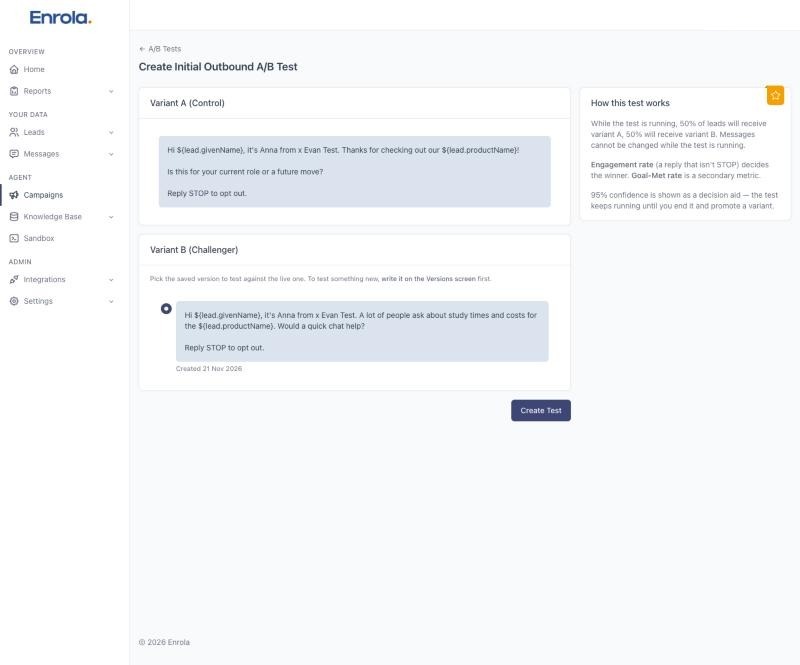
- Select Create A/B Test.
- Variant A (Control) is your current live message. Under Variant B (Challenger), choose the version you saved.
- Select Create Test, then Start test to confirm.
While the test is running
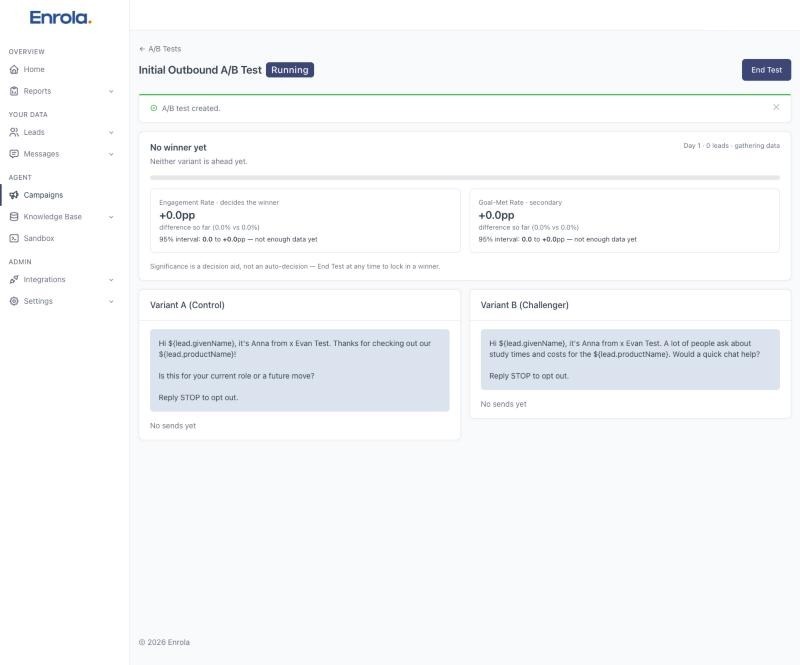
- Leads are split 50/50. Half get Variant A and half get Variant B.
- The message is locked. You can't edit, delete or promote versions of that message until the test ends.
- Check progress on the test page, under the message's A/B Tests.
How the winner is decided
- Engagement rate decides the winner. This is the share of leads who reply with anything other than STOP.
- Goal-met rate is shown as a second measure.
- 95% confidence is shown to help you decide. The test doesn't end itself: it keeps running until you end it.
How long should it run? There's no minimum, and you can end a test early if there's a clear winner. We suggest waiting until each version has gone to at least 100 leads. Where you can, let the test run until Enrola shows a clear winner, as early results can swing either way.
End the test
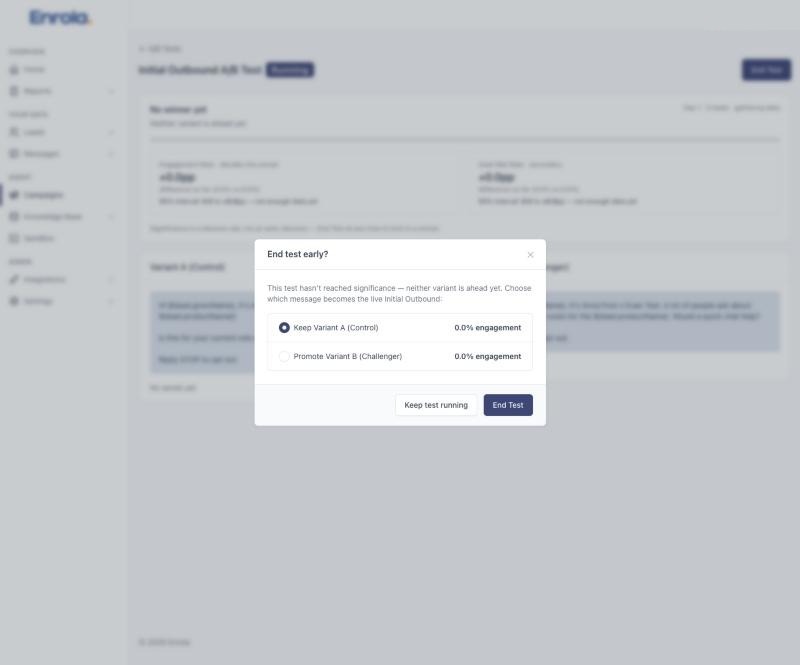
- On the test page, select End Test.
- Choose Keep Variant A (Control) or Promote Variant B (Challenger).
- Select End Test.
The version you choose becomes the live message. The result stays under A/B Tests on the message's Manage page.
Tips
- Change one thing at a time, such as the question at the end or the opening line, so you know what made the difference.
- Use what leads ask about. If leads often ask about the same things, such as times, cost or location, try a challenger that speaks to them.
Good to know
- You can test each message separately: the Initial Outbound, Try Again and Re-Engage each have their own A/B tests.
- Copying a campaign doesn't copy running A/B tests.
- We'd love your feedback. A/B testing is a new feature, so let us know how it's working for you at support@getenrola.com.