
Short answer: When a lead opts out, they get a short message confirming they won't be contacted again. To use your own wording, go to Admin > Settings > General, select Edit next to Unsubscribe Message, turn on Use a custom unsubscribe message, write your message and select Save.
Customers also ask:
- Can we change the opt-out reply wording?
- What message does a lead get when they reply STOP?
The default message
Unless you set your own, leads who opt out receive:
You have been unsubscribed and will not receive further messages.
Set your own message
- In the Enrola Customer App, go to Admin > Settings > General (open General settings).
- Next to Unsubscribe Message, select Edit.
- Turn on Use a custom unsubscribe message.
- Write your message, up to 500 characters.
- Select Save.
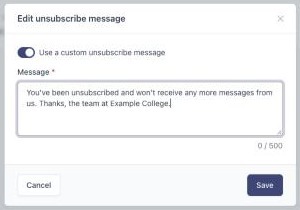
Your message applies to every campaign in your organisation.
To go back to the default, edit the message again and turn off Use a custom unsubscribe message.
Tips
- Keep it short and clear. Confirm they won't hear from you again.
- Sign off with your organisation's name, so the lead knows who the message is from.
- Add a way to reach you, such as a phone number, in case the lead wants to get in touch later.
- Don't ask a question. The lead has asked not to be contacted.